



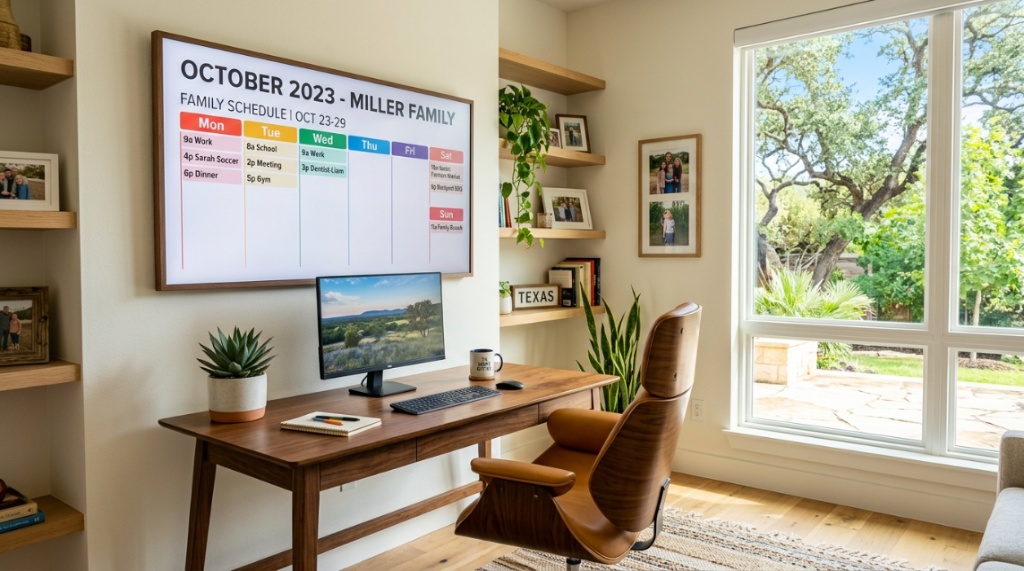
Waking up in Houston or San Antonio with a family schedule scattered across three apps and a sticky note on the fridge is a recipe for missed appointments. You need a central command center that everyone can see, but giant commercial displays often come with a price tag that feels like a mortgage payment. The search for affordable large digital calendars Texas usually hits a wall of either cheap, flimsy frames or professional-grade screens that break the budget. This guide cuts through the noise, focusing on the sweet spot: large screens, robust software, and price points that make sense for homes, schools, and small businesses across the Lone Star State.
What Defines a ‘Large’ Digital Calendar for Texas Homes and Offices?
A large digital calendar is typically any screen with a diagonal measurement of 15 inches or more, designed primarily for displaying a shared schedule. Unlike a tablet propped on a counter, these devices are meant to be wall-mounted or placed on a stand to replace paper calendars and whiteboards. The key distinction is the viewing distance; a 15-inch screen works for a small office, while a 24-inch or larger display is better for a busy family kitchen or a conference room.
Screen Size vs. Resolution: What Matters Most
Resolution is critical at large sizes. A 24-inch screen with 1080p resolution will look crisp from across a room, but a 32-inch screen at the same resolution might appear pixelated up close. For most affordable large digital calendars Texas shoppers, a 16:9 or 16:10 aspect ratio with Full HD (1920×1080) is the minimum standard. If you plan to view the calendar from more than 8 feet away, prioritize size over razor-sharp resolution because text will still be legible.
Portrait vs. Landscape Orientation: Which Fits Your Space?
Most digital calendars allow both orientations, but you should choose based on your wall space and the calendar layout you prefer. Landscape orientation is ideal for weekly views, showing multiple columns for each day. Portrait orientation works better for daily or list-style agendas, mimicking a traditional paper planner. Before purchasing, measure your available wall space and decide which view will be your primary layout to avoid buying a screen that forces a compromise.
Standalone Hardware vs. Smart Display vs. DIY Tablet
There are three main paths to a large digital calendar. First, purpose-built devices like the DAKboard or Skylight Cal Max come with software pre-installed. Second, smart displays like the Amazon Echo Show 15 offer calendar integration but limited app choices. Third, a DIY approach using an old monitor and a Raspberry Pi is the cheapest but requires technical setup. For most people in Texas looking for a plug-and-play solution, the first option is worth the premium over the DIY route.
Why Are Some Large Digital Calendars So Expensive?
The price difference often comes down to three components: the quality of the IPS panel, the processing power, and the software subscription model. A $200 calendar might use a low-grade TN panel with poor viewing angles, making it hard to read from the side. A $600 calendar typically includes a brighter screen (400+ nits) for sunny rooms and a faster processor for smooth animations, which is essential for a device that sits on your wall all day.
The Hidden Cost of Software Subscriptions
Many hardware manufacturers sell the screen at a loss, hoping to recoup profits through monthly subscriptions. Some calendars require a $5–$10 monthly fee for features like Google Calendar sync or family member access. Over three years, this adds $180–$360 to the total cost. When comparing affordable large digital calendars Texas options, always calculate the “Total Cost of Ownership” (hardware + 3-year subscription) to see the true price.
Why Brightness and Anti-Glare Coatings Raise the Price
Texas homes often have large windows and bright, sunny living areas. A screen with 250 nits of brightness will look washed out in the afternoon. Quality screens use 350–500 nits and include anti-glare treatments to maintain contrast. This is not a luxury; it is a necessity for a calendar you need to read at a glance while walking past. Cheaper screens skip this treatment, making them less usable in real-world conditions.
When setting up a modern, tech-driven workspace or smart home command center, curating the right digital tools extends beyond just calendars. If you are also upgrading your business infrastructure or online presence while organizing your schedule, check out this guide on how to choose a web design company to ensure your digital workflow is fully optimized.
Battery vs. Corded: The Installation Trade-Off
Portable digital calendars with batteries are convenient but often require daily charging, becoming a maintenance chore. Corded models require a nearby outlet or professional installation, which is an added cost. A compromise is a device with a long power cord and a wall-mounting kit that hides the cable. Factor in installation costs if you are not handy with a drill, as this can add $50–$150 to your budget.
How to Set a Realistic Budget for a Digital Calendar in Texas?
Set a budget between $150 and $500 for a large screen that will last. For under $150, you are likely looking at refurbished tablets or small 10-inch frames, which do not qualify as “large.” In the $200–$350 range, you can find excellent 15–24 inch options, especially during Back-to-School or Black Friday sales. Above $400, you gain premium build quality and faster software but see diminishing returns for basic calendar use.
New vs. Refurbished Units: Is the Savings Worth It?
Refurbished units from reputable sellers can save you 30–40% off the retail price. For example, a returned Skylight Cal Max might cost $250 instead of $350. The risk is that you may receive a unit with minor scuffs or a battery that degrades quickly. If you choose refurbished, buy from a seller with a 90-day return policy to test the hardware thoroughly. For a device that stays on 24/7, the thermal stress on components is high, so new units offer better long-term reliability.
Timing Your Purchase: When Are the Best Sales in Texas?
Major retail events like Memorial Day, Labor Day, and Cyber Monday offer the best discounts. Additionally, Amazon Prime Day in July is a prime time to grab a deal. If you are a teacher or school administrator, look for education discounts directly from manufacturers. By waiting for these windows, you can often get a top-tier calendar for the price of a mid-range model.
Calculating the Value: What Should You Pay for Features?
Create a checklist of “must-have” features: touchscreen, WiFi, auto-rotation, and native integration with Google and Outlook. Allocate your budget accordingly. If you only need Google Calendar view, a $200 device with a basic interface suffices. If you need multiple calendar overlays (work and home), a $300+ device with robust software is a better investment. Do not pay extra for features you will never use, like voice assistants or video calling.
Which Calendar Apps and Ecosystems Work Best for Shared Calendars?
Google Calendar dominates the market because it is free, supports multiple users, and syncs instantly. Apple users might prefer the Calendar app for seamless integration with iCloud, but it is less flexible for non-Apple devices. The best ecosystem is one where all family members or team members already manage their schedules. Check if the digital calendar hardware natively supports your ecosystem or relies on third-party bridging apps like Caldav.
Google Calendar: The Default Standard
Most digital calendars are built around Google Calendar due to its open API. You can color-code events, share calendars with read-only or edit permissions, and set multiple reminders. For a family of five, each member can add their events, and the digital calendar displays them instantly. This is the safest choice for compatibility.
Outlook and Microsoft 365 Integration
If you work in a corporate environment that uses Outlook, ensure your digital calendar supports Exchange ActiveSync. Some consumer-focused devices handle Outlook poorly, only showing the primary calendar without sub-calendars. For Texas professionals juggling work and personal schedules, this is a critical distinction. Look for devices that explicitly mention “Microsoft Exchange” or “Outlook” in their specs.
Standalone Calendar Software vs. Standard Tablets
Dedicated calendar apps like DAKboard OS or Skylight offer a “kiosk mode” that prevents users from leaving the app. Standard tablets require you to configure “Guided Access” to lock the screen. This is a minor hassle but can be done in 10 minutes. If you are on a tight budget, purchasing a budget Android tablet and installing a $10 calendar app is a highly flexible and affordable path, though it lacks the polish of dedicated hardware.
How to Evaluate the Build Quality and Mounting Options?
You will mount this screen on a wall or stand, so physical build quality matters. A plastic frame with a flimsy stand will wobble and look cheap. Look for devices with an aluminum or brushed metal bezel and a VESA mount pattern (75x75mm or 100x100mm) for standard arms. The power adapter should be a separate brick rather than a built-in plug, allowing for easier cable management.
Wall Mounting: Renters vs. Homeowners
If you rent in Austin or Dallas, you risk losing your security deposit by drilling large holes. Consider a free-standing floor stand instead, which costs $30–$60. Alternatively, use heavy-duty double-sided tape (like Command strips rated for 10 lbs) for lighter screens under 5 pounds. Homeowners can install a flush mount for a cleaner look, hiding the cables behind the wall.
Cable Management Solutions for a Clean Look
Nothing ruins a sleek calendar like a dangling black cable. Purchase a cable cover kit from Home Depot for $10 to paint-match the wall. Alternatively, position the calendar directly below an existing outlet. If you choose a battery-powered option, remember that charging requires unplugging and remounting, which is inconvenient. Corded with a long cable is the most reliable setup.
Thermal Management in Hot Texas Climates
The inside of a car or an uninsulated garage can reach 120°F, which is dangerous for electronics. If your digital calendar is destined for a garage workshop or a sunroom, look for a device with an operating temperature rated to 110°F and active cooling (a small fan). Most consumer screens are only rated to 95°F and will suffer from a shortened lifespan in extreme heat. Place the calendar away from direct sunlight and ensure proper ventilation behind the unit.
Can You Connect a Digital Calendar to Other Smart Home Devices?
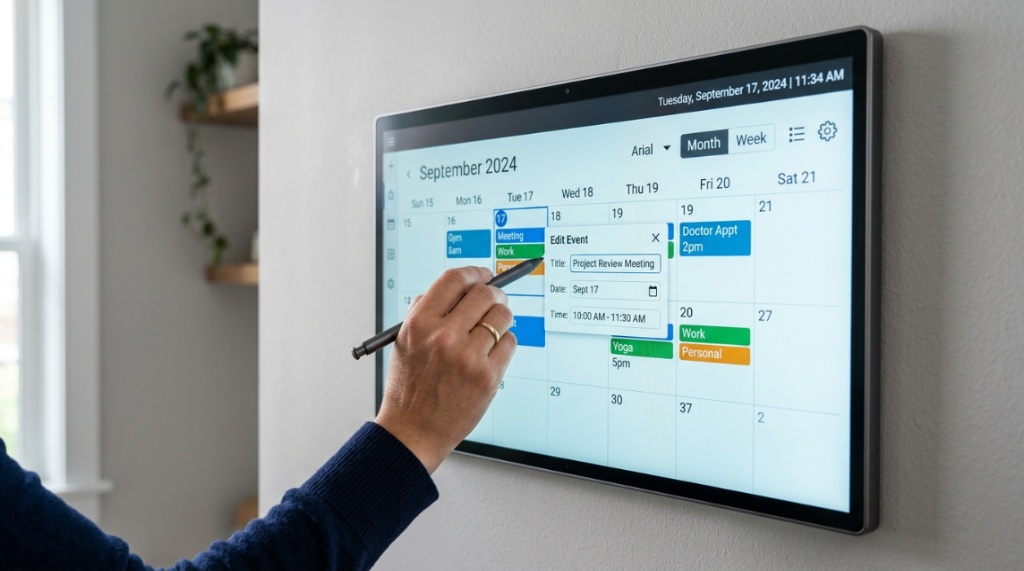
Yes, the best digital calendars serve as a hub for your connected home. They can display the weather, control smart lights through the dashboard, and show nutritional information for dinner. However, this integration is limited by the hardware’s ecosystem. A calendar powered by Android will work with Google Home, while a proprietary OS may only support its own ecosystem.
Interoperability with Alexa, Siri, and Google Assistant
If you ask “Alexa, what’s on my calendar tomorrow?” the Echo Show 15 is the most natural fit. For Google Assistant fans, the Lenovo Smart Display is a good option, though it is older. Dedicated calendar devices like the DAKboard do not have built-in assistants, so you lose voice control. Decide whether voice commands are a nice-to-have or a necessity. For a kitchen, voice integration is convenient when your hands are covered in flour, but for a home office, it is less critical.
IFTTT and Automation: Creating Alerts
Advanced users can integrate with IFTTT to turn on a smart light when an event starts or send text notifications. This requires the calendar to be paired with a smartphone and a smart home hub. While not essential, it adds a “smart” factor that justifies a higher price. If you are a tech enthusiast, look for a calendar with a local API or open SDK for custom programming.
Security and Privacy Concerns
Any screen displaying your family’s schedule, children’s names, and home location is a privacy risk. Ensure the device has a secure login and supports 2FA. Avoid connecting it to public WiFi. Unlike a phone, this screen is always visible to visitors, so consider a privacy screen filter or a “guest mode” that hides details when motion sensors detect unknown people. This is an overlooked aspect of choosing a calendar that is actually affordable but secure.
A Practical Buying Guide: Features to Look For and Avoid
To avoid buyer’s remorse, focus on a shortlist of features: a matte screen finish, a magnetic or friction-fit stand, and software that allows full-screen calendar display. Avoid devices with overly glossy screens that reflect glare, and be wary of brands that require annual contracts for basic sync (this is a trap). The best product is one you can set up in under 20 minutes without reading a 100-page manual.
Feature Checklist for Your Shortlist
- Memory and Storage: Minimum 1GB RAM and 8GB storage to avoid lag.
- Connectivity: Dual-band 5GHz WiFi to ensure smooth syncing.
- Operating System: Android 11+ or a proprietary OS known for updates.
- Power: USB-C PD (Power Delivery) for consistent power supply.
- Brightness: 300+ nits for readability in daylight.
Red Flags to Watch Out For
- Devices with only 2.4GHz WiFi (slow sync and dropouts).
- Frames with sharp edges that could be unsafe for children.
- Marketing claims of “unlimited free cloud storage” but a crippled app.
- Proprietary mounts that prevent you from using a standard VESA arm.
- No option to disable the sunset-to-sunrise dimming, which can make the screen too dark for evening events.
Comparing Popular Models
| Model | Screen Size | Price Range | Best For |
|---|---|---|---|
| DAKboard Pro 24 | 24″ | $300–$400 | Installers needing VESA mounts |
| Skylight Cal Max | 15″ | $250–$350 | Families wanting a simple touchscreen |
| Amazon Echo Show 15 | 15.6″ | $150–$220 | Alexa users on a budget |
For a curated list of budget-friendly options that meet these criteria, you can check out this resource on affordable large digital calendars Texas which compares top picks under $350.
Where to Buy: Local Stores vs. Online Retailers
In Texas, you can visit physical stores like Best Buy, Microcenter, and Fry’s (if it reopens), but the selection of specialized digital calendars is thin. Online retailers like Amazon, B&H Photo, and the manufacturer’s website offer the best variety. For urgent needs, Target and Walmart carry basics but often lack the large format screens. The best approach is to research online, then purchase from a retailer with a generous return policy.
The Benefits of Buying from Texas-Based Sellers
Buying from a Texas-based seller reduces shipping times and supports the local economy. Some local electronics stores in Austin or Dallas offer expert installation services, which is valuable if you are not comfortable mounting the screen yourself. However, local inventory is limited, and prices are often 10–20% higher than online. Weigh the convenience of local support against the cost savings of online shopping.
Warranty and Return Policies: Protecting Your Investment
Always check the warranty before purchasing. A one-year limited warranty is standard, but some brands offer a two-year warranty for an extra fee. Newegg and B&H have generous 30-day return policies, while Amazon’s 30-day window is also fine. Keep the original packaging for at least 30 days, as the devices are fragile and need special handling for returns. Read the fine print about dead pixels; some manufacturers tolerate up to 3 dead pixels before replacement.
Refurbished and Open-Box Deals: How to Score a Bargain
Open-box items at Best Buy are often gently used displays returned by customers at a significant discount. Check the condition labels: “Excellent” (minor signs of wear), “Good” (visible scratches), and “Satisfactory” (heavy wear but works). For a wall-mounted screen, a “Good” condition is perfectly acceptable. These items often include the full warranty, making them a smart way to get a premium model at a Budget Friendly price.
How to Set Up and Optimize Your New Digital Calendar
Unboxing the screen, plugging it in, and connecting to WiFi is straightforward, but optimization takes 15 minutes. First, update the firmware to the latest version. Next, configure the calendar app to display all the calendars you need, hiding others to reduce clutter. Finally, set the sleep/wake schedule. For a home, set it to turn on at 6 AM and off at 10 PM to conserve energy and prevent screen burn-in.
Step-by-Step: Configuring Google Calendar for Multiple Users
- Create a dedicated Google account for the calendar (e.g., family@yourdomain.com).
- In Google Calendar settings, share the main calendar with each family member’s email address.
- Set permission to “Make changes to events” for trusted members.
- On the digital calendar device, sign in to the family account.
- Select “All Calendars” to display everyone’s events.
This method avoids sharing a personal password and keeps everything centralized.
Customizing Layouts and Themes for Readability
Most good software allows you to change the font size, background color, and event density. Use a dark background with white text to reduce glare in a dark hallway. For a kitchen, use a light background with black text for high contrast in daylight. Enable event previews to show start times and titles without cluttering the screen. Avoid showing the full event description, as it becomes unreadable from a distance.
Troubleshooting Common Sync Errors
If events do not appear, check the sync interval in settings (set to 15 minutes). Ensure the device date and time are correct. If you have a firewall blocking Google services, the sync will fail. For persistent issues, log out and back in, or soft-reset the device. For a DIY setup with a Raspberry Pi, always keep the API key secure and do not share it publicly in forums.
Conclusion
Choosing the right affordable large digital calendar in Texas does not need to be overwhelming. The key is to focus on the screen size you actually need, a brightness level that works in your bright rooms, and software that plays nicely with your existing calendar ecosystem. You can easily spend under $350, especially if you take advantage of holiday sales or open-box deals. By prioritizing a matte display, a VESA mount, and a robust app, you will have a family command center that eliminates scheduling conflicts and keeps everyone on the same page. Start your search with a solid checklist, measure your wall space, and do not let the tech hype inflate your budget.
Now that you have a roadmap, the next step is to review a shortlist of top models and read recent user reviews before pressing the checkout button. The best calendar for you is the one that sits quietly on the wall, for years, without needing constant tinkering. Take the insights from this guide, and go find the affordable large digital calendars Texas that fits your life perfectly. You are one click away from a more organized household.
Frequently Asked Questions
Can I use a regular smart TV as a digital calendar?
Yes, you can, but it is inefficient. A smart TV lacks low-power standby modes and consumes 80W+ of electricity, driving up your utility bill. Installing a web browser with a calendar dashboard works, but there is no kiosk mode, so you risk accidental exits. It is better to buy a dedicated digital calendar or a cheap Android tablet.
What is the ideal screen size for a Texas kitchen?
For a kitchen, a 15–18 inch screen is usually sufficient if you are within 5-6 feet of the display. For a larger kitchen island, consider a 24-inch screen. Anything over 27 inches becomes intrusive and overpowers the room. Measure the distance from the planned mount to the most common viewing spot and divide by 4 to get the best screen size in inches.
How do I prevent the calendar from burning out the screen?
Enable a screensaver that displays a clock or a photo slideshow after 5 minutes of inactivity. Also, a schedule to turn the screen off at night is a must. Modern IPS panels are less prone to burn-in than old plasma TVs, but static images for 24 hours a day can still cause ghosting over several months. Lower the brightness to 50% to extend the lifespan.
Can I display multiple calendars from different family members?
Absolutely. Most modern calendar apps support overlaying multiple Google Calendar accounts. On a shared device, you can either sign in to a single “master” account that subscribes to others, or use the device’s multi-account feature. This is a core feature for families and prevents missed appointments.
Is a touchscreen worth the extra money?
For most users, no. The majority of the time you will be glancing at the screen, not interacting. The exception is if you want to quickly add events directly from the wall without pulling out your phone. Touchscreens are also prone to fingerprints and smudges. A non-touch screen is cheaper and has a cleaner appearance.
Can I install a digital calendar outdoors in a covered patio?
It is not recommended unless the device is IP-rated for outdoor use. Even covered patios have high humidity and temperature swings that will cause condensation inside the screen. If you must, place it in a ventilated weatherproof box, but be aware that the screen’s maximum brightness might not be enough for direct sunlight. For outdoor use, look for high-brightness displays rated at 1,000+ nits.





+ There are no comments
Add yours