Solitaire, the classic card game, has been a digital staple for decades. Its modern evolution into competitive, cash-prize mobile games has taken the world by storm. Solitaire Smash is a frontrunner in this space, attracting millions with its fast-paced gameplay and the allure of real money rewards. As experts in digital trends, our team at Trends Magazine has seen apps like this skyrocket in popularity. However, with a massive user base comes a higher chance of technical hiccups. If you’ve ever been in the middle of a winning streak only to have the app freeze, you know how frustrating glitches can be.
These technical issues often lead players down a rabbit hole of questions. You might start to worry about the fairness of the game or the security of your funds. It’s a common and understandable concern that causes many to ask, is solitaire smash legit? While glitches can certainly sour the experience, they don’t automatically point to a fraudulent operation. Most of the time, these are common software bugs that can be fixed with a few simple steps.
This comprehensive guide will walk you through the most common Solitaire Smash game glitches and provide clear, actionable fixes. We will explore everything from annoying freezes and connection errors to more serious concerns about deposits and withdrawals. Our goal is to help you troubleshoot these problems effectively, so you can get back to enjoying a smooth and fair gaming experience. Understanding why these issues happen and how to resolve them is the first step to playing with confidence.
Why Do Games Like Solitaire Smash Glitch?
Before diving into the fixes, it helps to understand why these glitches happen in the first place. No app is perfect. Every piece of software, from your phone’s operating system to a complex game like Solitaire Smash, is built on millions of lines of code. A small bug can cause unexpected behavior.
Several factors can contribute to in-game issues:
- Server Overload: When millions of players are online at once, the game’s servers can become strained, leading to lag, disconnects, and other performance problems.
- App Updates: Developers constantly release updates to add new features and fix known bugs. Sometimes, these updates can accidentally introduce new problems or conflict with older versions of your device’s operating system.
- Device Compatibility: The game needs to work on thousands of different phone models. Variations in hardware, software, and memory can cause the app to behave differently from one device to another.
- Network Instability: Your own internet connection plays a huge role. A weak or unstable Wi-Fi or cellular signal is a common culprit for many in-game errors.
Knowing this helps frame the problem correctly. A glitch is more likely a technical issue than a deliberate attempt to undermine your gameplay.
Troubleshooting Common Solitaire Smash Glitches
Now, let’s get to the solutions. Here are some of the most frequently reported problems and how you can resolve them.
The Frustrating Freeze: When Your Game Stops Mid-Play
This is perhaps the most common complaint. You’re one move away from clearing the board, and suddenly, the screen is completely unresponsive. The cards won’t move, the timer is stuck, and you’re forced to close the app, likely forfeiting the match and your entry fee.
- The Quick Fix: Force Close and Relaunch: The first and simplest step is to force close the application completely and then reopen it.
- On an iPhone, you typically swipe up from the bottom of the screen to show all open apps, then swipe the Solitaire Smash window up to close it.
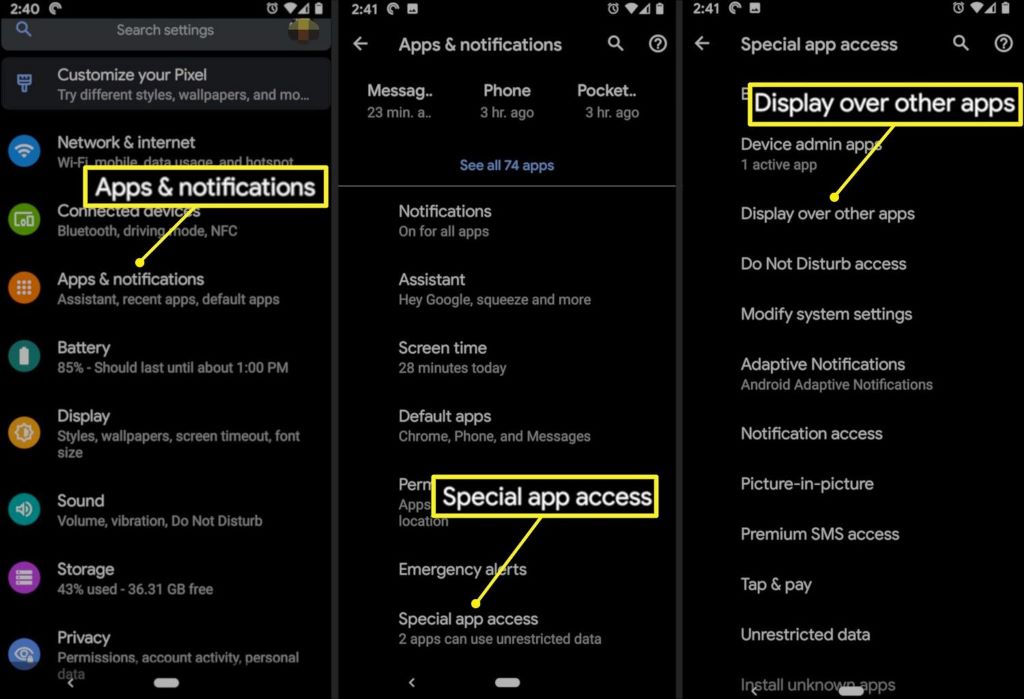
- On an Android device, you can use the recent apps button and swipe the app away, or go to Settings > Apps > Solitaire Smash > Force Stop.
- The Reboot: Restart Your Device: If force-closing the app doesn’t work, try a full device restart. This can clear out temporary memory issues that may be causing the app to freeze.
- The Update: Check the App Store: Make sure you have the latest version of Solitaire Smash installed. Developers regularly push updates to fix freezing bugs and improve stability. Visit the App Store or Google Play Store to check for any pending updates.
- The Cleanse: Clear the App Cache (Android Only): Over time, an app can accumulate a lot of temporary data that can become corrupted. Android users can go to Settings > Apps > Solitaire Smash > Storage > Clear Cache. This will not delete your account data but can resolve many performance issues.
Solving Connection and Network Errors
Do you frequently see a “Connection Error” or “No Internet” message, even when you know your internet is working? This glitch can prevent you from starting a match or cause you to be disconnected in the middle of one. These errors cast doubt on the game’s reliability, making players question if Solitaire Smash is legit when their results are impacted by something beyond their control.
- Switch Your Connection: The most effective solution is often the simplest. If you are on Wi-Fi, try switching to your cellular data. If you are on cellular data, try connecting to a stable Wi-Fi network. This helps determine if the issue is with your specific network.
- Reset Network Settings: Sometimes your phone’s network settings can get scrambled. You can reset them without losing your data.
- On iOS: Go to Settings > General > Transfer or Reset iPhone > Reset > Reset Network Settings.
- On Android: Go to Settings > System (or General Management) > Reset > Reset Network Settings.
- Remember, this will erase your saved Wi-Fi passwords, so you’ll have to re-enter them.
- Disable VPN: If you are using a Virtual Private Network (VPN), it could be interfering with the game’s ability to connect to its servers. Try temporarily disabling your VPN to see if that resolves the issue.

Navigating Deposit and Withdrawal Problems
Issues involving real money are understandably the most concerning. You might experience a delay after making a deposit, or your withdrawal request might seem to be stuck in a “pending” state. This is a critical point where many users begin to seriously question, is Solitaire Smash legit?
- Patience with Deposits: When you deposit funds, there can sometimes be a slight delay as the transaction is processed by your bank or payment provider (like PayPal or Apple Pay). If the money has left your account but isn’t showing up in the game after an hour, it’s time to take action. First, restart the app. If that doesn’t work, take a screenshot of your transaction receipt and contact customer support.
- Understanding Withdrawals: Withdrawals are rarely instant. Solitaire Smash, like other similar apps, has a verification process to prevent fraud. Your first withdrawal will likely take the longest, as they may need to verify your identity.
- Check that you have met the minimum withdrawal amount.
- Ensure your payment information (e.g., PayPal email) is entered correctly. A single typo can cause the transaction to fail.
- Withdrawals can take anywhere from 3 to 14 business days, depending on the method and whether it’s your first time. This is a standard industry practice, not necessarily a sign of a problem.
- Follow Up: If the standard processing time has passed and you still haven’t received your funds, contact their support team with your user ID, the date of the request, and the amount.
What to Do When Bonus Cash Doesn’t Appear
Solitaire Smash often runs promotions offering bonus cash for deposits or other actions. It can be disappointing when you meet the requirements, but the bonus cash never appears in your account.
- Read the Fine Print: Go back and carefully read the terms and conditions of the promotion. Sometimes there are specific requirements you may have missed, such as a promo code needing to be entered exactly as written or the offer being valid for first-time depositors only.
- Allow for Processing Time: Just like regular deposits, bonus cash can sometimes take a few minutes to a few hours to be credited to your account. Give it a little time before assuming there’s a problem.
- Document and Contact Support: If you are certain you qualified and the bonus is still missing after a reasonable amount of time, take a screenshot of the promotional offer and your deposit receipt. Contact customer support with this evidence to have the bonus cash manually applied.
Proactive Steps to Prevent Future Glitches
Instead of just fixing problems as they arise, you can take a few steps to minimize your chances of encountering them in the first place.
- Use a Strong Internet Connection: Always try to play on a stable and fast Wi-Fi network. Public Wi-Fi, like at a coffee shop or airport, is often unreliable and can lead to disconnects.
- Keep Everything Updated: Regularly update not only the Solitaire Smash app but also your phone’s operating system. These updates contain important security patches and performance improvements that can help apps run more smoothly.
- Free Up Device Resources: Close other apps running in the background before you start playing. This frees up your phone’s memory and processing power, giving the game the resources it needs to run without freezing or lagging.
- Maintain Storage Space: Try to keep at least 1-2 GB of free storage space on your device. When a phone’s storage is nearly full, it can cause performance to slow down across all apps.
Conclusion: A Smooth Gaming Experience is Possible
Glitches and technical bugs are an unavoidable part of the modern digital world. While they can be incredibly frustrating, especially when money is on the line, they are usually not a sign of a malicious or illegitimate operation. Most issues with Solitaire Smash, from freezing to connection errors, can be resolved with basic troubleshooting like restarting the app, checking your internet connection, or updating the software.
Concerns about the game’s legitimacy often arise from these technical snags, particularly those involving payments. However, by understanding that processing delays and verification checks are standard procedure, you can approach these situations with more confidence. When basic fixes don’t work, the game’s customer support team is your next best step. By documenting your issue clearly, you increase the chances of a swift and satisfactory resolution. Ultimately, a smooth and enjoyable experience with Solitaire Smash is entirely possible with a bit of patience and troubleshooting knowledge.
Frequently Asked Questions About Solitaire Smash
-
Why does my Solitaire Smash game keep crashing?
Crashes are often caused by memory issues, software bugs, or an outdated app version. The best first steps are to force-close the app, restart your device, and check the App Store or Google Play Store for an update. Clearing your app cache (on Android) can also help.
-
Is it safe to deposit money into Solitaire Smash?
Yes, it is generally safe. Solitaire Smash uses secure and reputable payment processors like PayPal, Apple Pay, and major credit card companies to handle transactions. However, like any online transaction, it is wise to monitor your statements and use strong, unique passwords.
-
How long do Solitaire Smash withdrawals actually take?
While some may be processed in a few days, it’s realistic to expect a withdrawal to take between 5 to 10 business days. Your very first withdrawal may take longer due to identity verification requirements, which is a standard anti-fraud measure in the industry.
-
Can a game glitch cause me to lose my real money?
If the game glitches or freezes mid-match, you may forfeit your entry fee for that specific game. If you believe a bug caused your loss, you can contact customer support to report the issue. In some cases, they may refund your entry fee as a courtesy, especially if it’s a known problem.
-
Does Solitaire Smash use bots to play against?
Solitaire Smash states that you are matched with real players of a similar skill level. However, if a live opponent cannot be found quickly, you may be matched against a recording of a previously played game by a real person. This ensures you can always find a match, but you are still competing against a human’s score.
Read More:
